Put image-based ASCII art in a GitHub README
Start with a clear project mark, copy the result as a code block, and check the rendered README before publishing.
For a GitHub README, begin around 80 columns, copy the generated characters inside a fenced code block, and check the rendered README at narrow width. The Fox mark below uses the Simple character set; a busy photo may need a simpler crop.
By Image to ASCII · Updated October 6, 2026
PROJECT README / EXAMPLE
Foxkit — small tools, clear ideas.

See the original Fox mark image

Keep the project name, description and links as normal text. Place the character mark inside a fenced code block below them.
Inspect the generated text and code fences
```text


                +                                              +
               #*##+                                        *##*#
               #*+###*                                    ####+*#
               #**+####+                                #####+**#
              ##**+=#####=                            ######=+**##
              ##***+#######                         #######=++**##
             ###***++########                      ########=+***##.
             ###***++=#########                  #########=++***###
             ###****++=##########             .##########==+****###
            #####***++=#######*##########################=++****###
            ####****+++=################################-=++****####
             ###****++=*=##############################=#=++****###
              ##****+=**################################**=+****##
               #***+########################################+***#
                #*######################*#####################*#
                 #######################*######################
               #####*+##################*################*+*#####
             #########**  ##############*############*  **#########
           ##############     ##########*########*     ##############
         ##################     #*######*#####*#     #################-
           **+++=*#############- #######*###### .############*==+++**
             #****+++++==#######*+######*#####=*#######-===+++***#
                ##*****++==######*############**#####-=+++*****#
                  -##*****+=######*##########+**###*=+++****#
                      #*****+=####*##########**###-=++***.
                            **+=###*########+*##-=+*
                                 ###########*##
                                  *#*+    =*#
                                    ##*  +**
                                      ##**


```
A practical starting recipe
Choose a portrait or mark with a clear outline and an uncluttered background. Open the converter and load the Fox mark example to see a clean, purpose-built project signature, or select your own file. Image processing stays in your browser.
| Setting | Fox mark recipe |
|---|---|
| Width | 80 columns |
| Character style | Simple |
| Contrast / sharpening | 18 / 12 |
| Background cleanup | Off |
| Dithering / color | Off / off |
| Tonal balance / invert | 1.10 / on |
For a square source, the tool samples 80 × 38 character cells to compensate for tall text characters. This is a starting recipe, not a promise that every image will be recognizable. Use a simpler crop if the subject disappears.
The Fox mark recipe is tuned for its white outline on black. The general README preset remains available for your own sources; it uses different tone and background settings.
Compare a narrower README mark
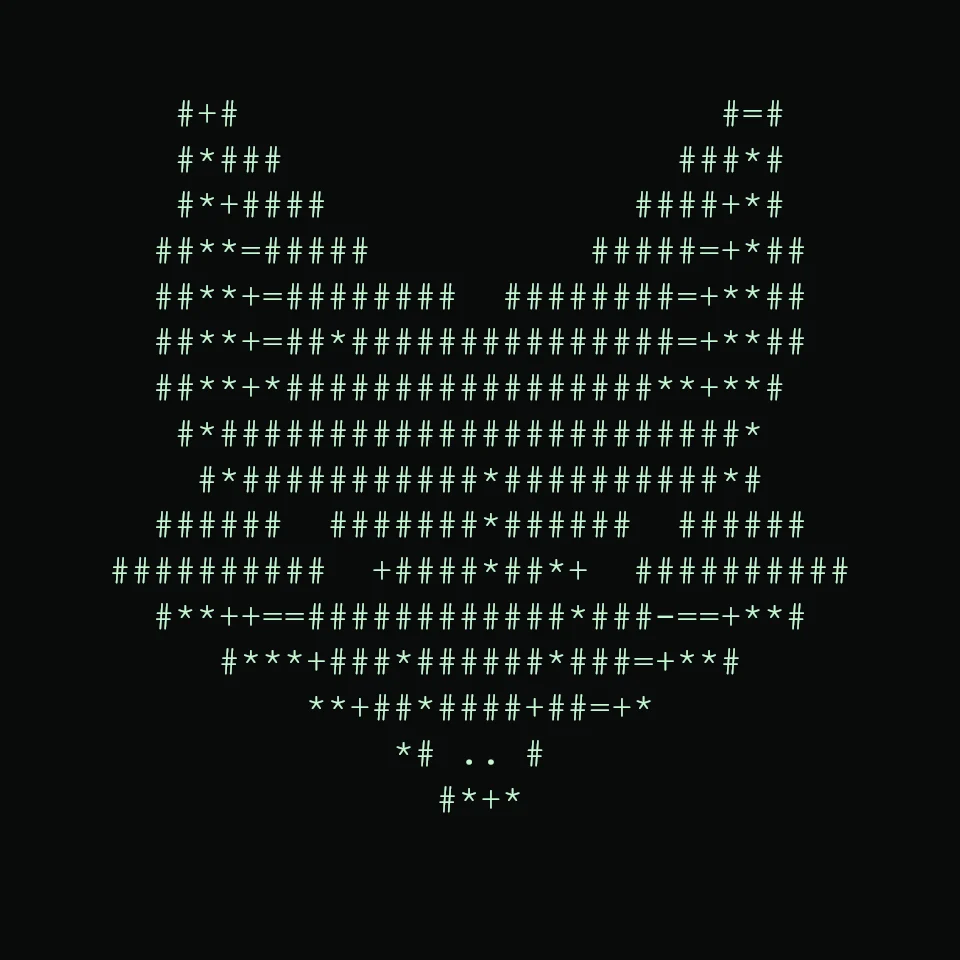
The same Fox source also produces a 44 × 21 character version with the README Mark settings and width set to 44. Its outline survives, but the smaller face carries less detail than the 80-column example above. This is an export comparison, not a claim that either size fits every README layout.
SAME SOURCE / FEWER COLUMNS
View the compact generated text
        #+#                      #=#
        #*###                  ###*#
        #*+####              ####+*#
       ##**=#####          #####=+*##
       ##**+=########  ########=+**##
       ##**+=##*###############=+**##
       ##**+*#################**+**#
        #*########################*
         #*###########*##########*#
       ######  #######*######  ######
     ##########  +####*##*+  ##########
       #**++==############*###-==+**#
          #***+###*######*###=+**#
              **+##*####+##=+*
                  *# .. #
                    #*+*
Use the compact version when a short text signature matters more than facial detail. If the mark needs a precise appearance or color, export PNG or SVG instead and keep the project name as ordinary text.
Copy and preview the result
- Open the converter, load the Fox mark example, or choose your own image and select README.
- Adjust contrast while looking at the face or outline. Reduce width if the result is too wide in the destination.
- Open More exports and choose Copy README or Copy Markdown.
- Paste into your README and inspect GitHub’s rendered preview, including a narrow screen.
GitHub supports fenced code blocks. Keep the opening and closing fences on their own lines. Use Copy README to include them automatically; the downloadable TXT above contains the artwork only.
For GitHub’s formatting rules, see Creating and highlighting code blocks.
Fix common problems
The art stretches or loses alignment
Keep the line breaks and use a monospace code block. Column width controls detail and total width; it does not correct a destination font’s character proportions. A PNG preserves the rendered appearance when text formatting cannot.
Colors disappear
TXT and README copies contain characters rather than per-character colors. Use PNG, SVG or HTML export when color matters. Uploading an exported image to GitHub is a separate action from conversion.
Symbols render differently
Simple, Dense and Detailed use ASCII characters. Blocks contains Unicode symbols, which may depend more on available fonts. Choose Simple for a small, portable text mark.
Do not assume 80 columns fits every phone or README layout. Check the destination. Keep essential information in readable text outside the artwork.
Sharing in chat instead? Read the Discord formatting guide.